

Quick Navigation
1. [Extraction Issue] How to extract the game after downloading?
2. [Extraction Issue] What to do if the extracted file is corrupted?
6. [Game Issue] There are many game versions in the cloud drive, which one should I choose?
9. [Game Issue] How to install GOG games? Steam vs GOG version, which to choose?
10. [System Issue] Where to download clean Win11/Win10 system? How to reinstall?
[Extraction Issue] How to extract the game after downloading?
How to extract the game after downloading?
Large games usually come with multiple split archives. After downloading, don't rush to extract them. Run "Click me to verify file integrity.bat" first to check if all files are complete or if any are corrupted.
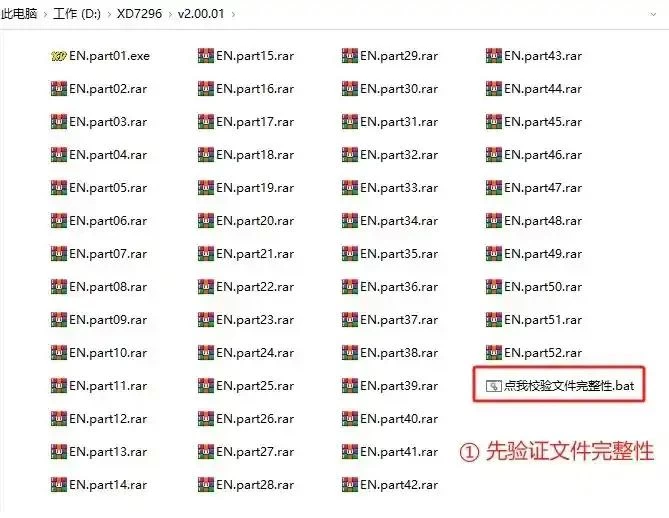
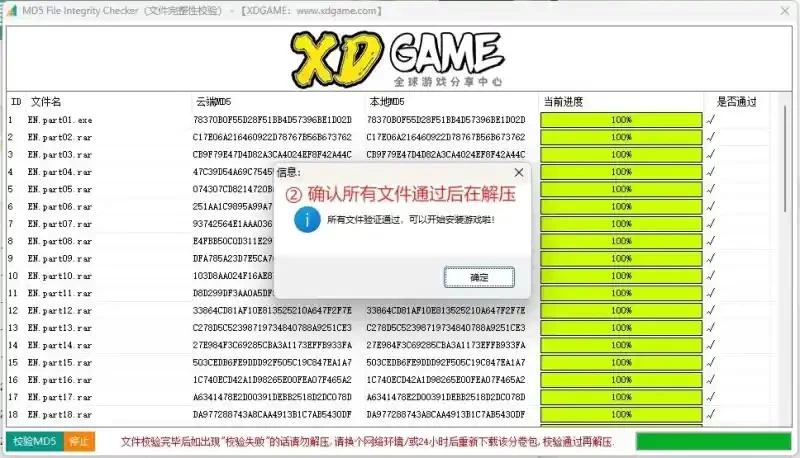
Confirm that all split archives are present and not corrupted, ensuring the game is complete before proceeding to the next extraction step.
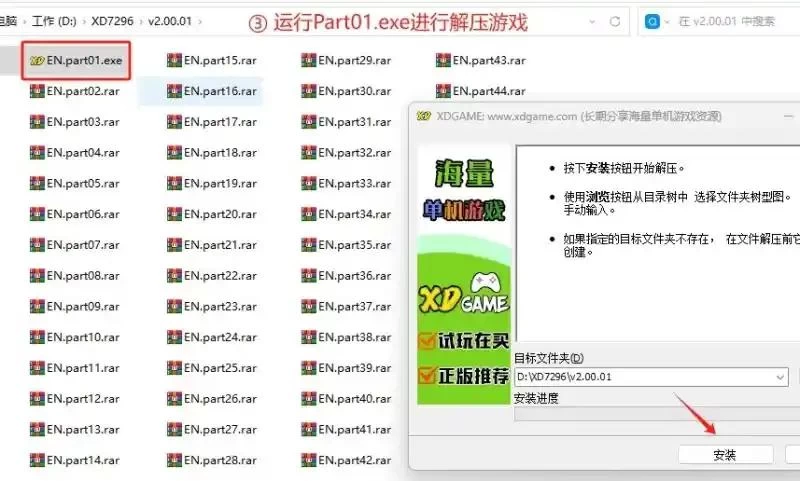
Run Part01.exe to extract the game and wait patiently for the extraction to complete! Remember, do not randomly right-click and extract other split archives - you must run Part01.exe to get the complete game.
[Extraction Issue] What to do if the extracted file is corrupted?
What to do if files are corrupted after downloading?
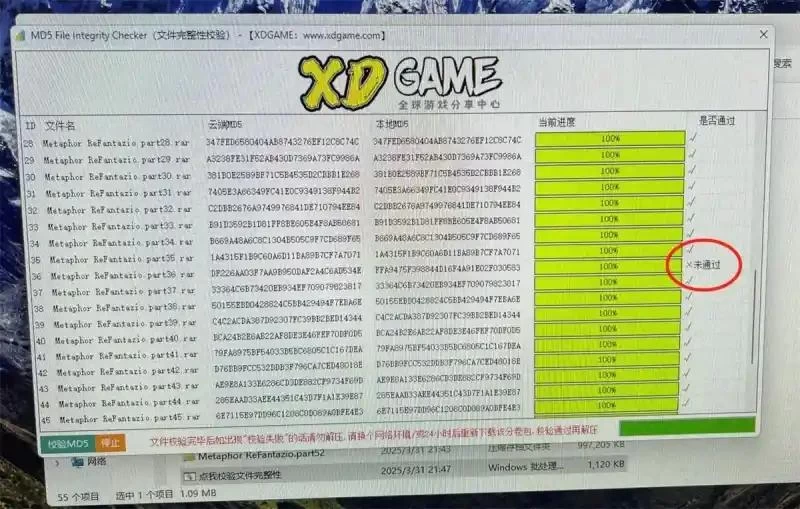
If the file integrity check shows "Failed," it means that compressed archive is corrupted. Do not proceed with extraction at this point - you need to fix this issue first.
How to fix it specifically?
As shown in the image above, our corrupted package is Part36. Delete file 36 locally first, then re-download this file from the cloud drive, put it back in the directory, and verify again.
If it still doesn't work, for example, if we downloaded from Baidu Netdisk, we can switch to another drive like Tianyi Cloud Drive to download this Part36 split archive, then put it back in the directory - verification should succeed.
Note: If you don't have an account for other cloud drives, you can wait 24 hours or switch to a more stable network environment to re-download the corrupted Part36 split archive.
Why does corrupted archive happen?
Resources are usually verified before uploading, so the resources themselves are fine. Generally, it's due to instability between your network and the cloud drive network, causing downloaded files to become corrupted.
[Extraction Issue] Extraction prompts missing volume?
Extraction prompts missing volume
If you've followed all the above steps, checked that the split archives are complete, and still get the following prompt, it means the files are being occupied by the cloud drive client process, preventing them from being read. Simply exit the cloud drive client to solve this.
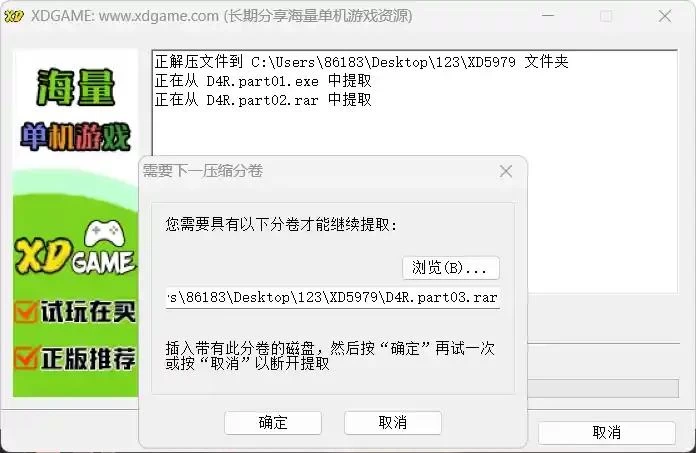
[Extraction Issue] What is the extraction password?
What is the extraction password?
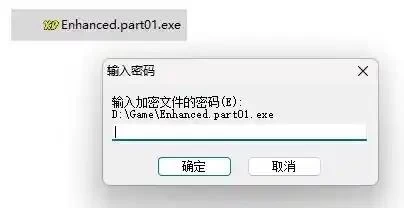
The default is usually "XDGAME" or "WWW.XDGAME.COM" in all uppercase letters - you can copy and use directly.
Due to the special nature of resources, some require password protection to prevent them from being taken down or becoming invalid. Please understand and bear with us!
[Game Issue] How to completely disable Windows Firewall? [Must read! No games will run without this!]
When playing single-player games, not turning off Windows Firewall will cause games to be blocked and unable to run. Windows Firewall may identify crack patches, trainers, or game EXE/DLL files as potential threats, block them from running, and directly delete them. Without disabling the firewall, basically no games can be played smoothly.
Solution 1 [Not recommended]
Add the game folder to the antivirus software or Windows Firewall whitelist (This method is highly not recommended because you have to re-add it every time you download a new game or software)
Open Windows Security Center, click on Virus & threat protection in the left sidebar, find and click Manage settings under "Virus & threat protection" settings.
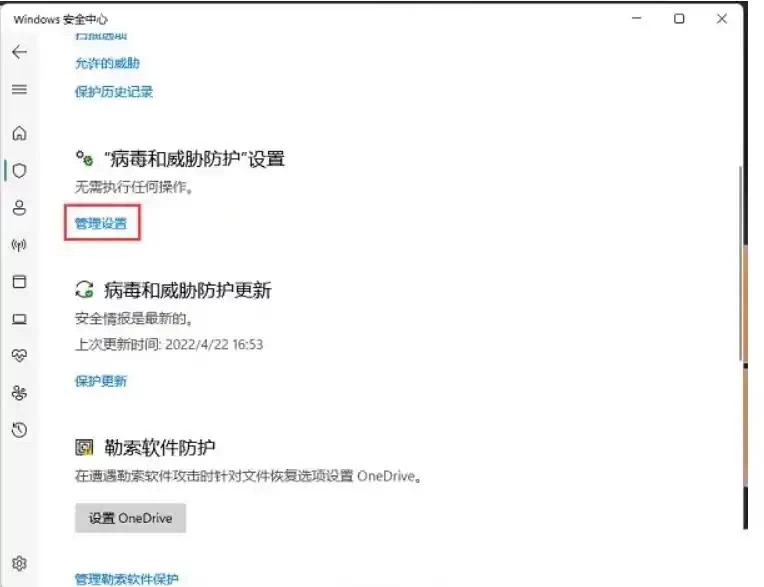
Exclusions (Microsoft Defender Antivirus won't scan excluded items.) Click Add or remove exclusions.
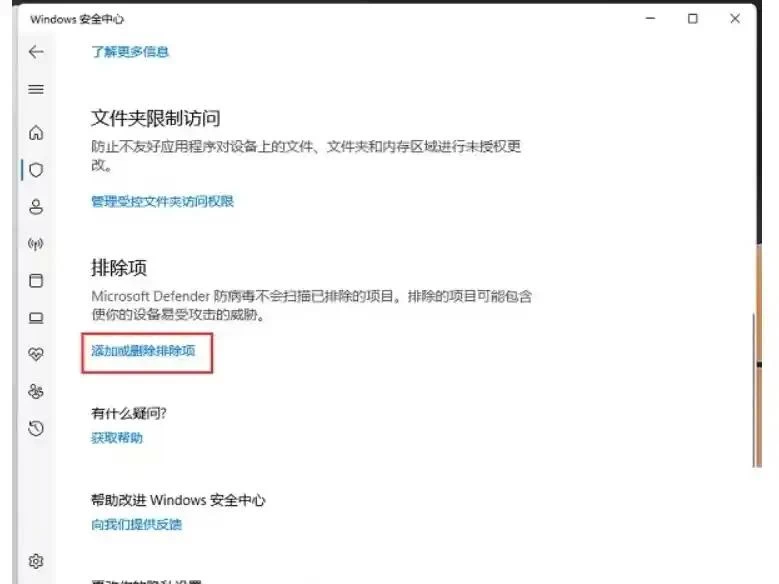
Click Add an exclusion (Add or remove items that you want to exclude from Microsoft Defender Antivirus scans) After this setting, the virus protection won't scan excluded content, thus preventing false deletions.
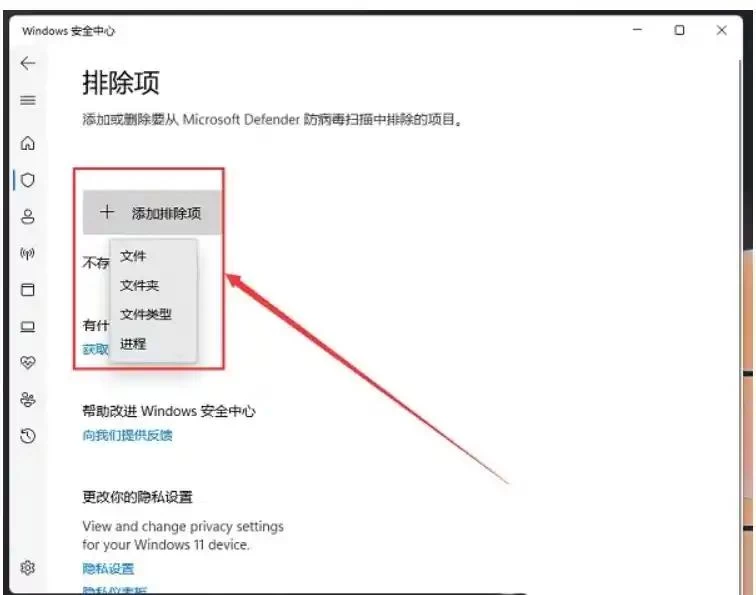
Solution 2 [Recommended]
Step 1 [Disable via Control Panel]
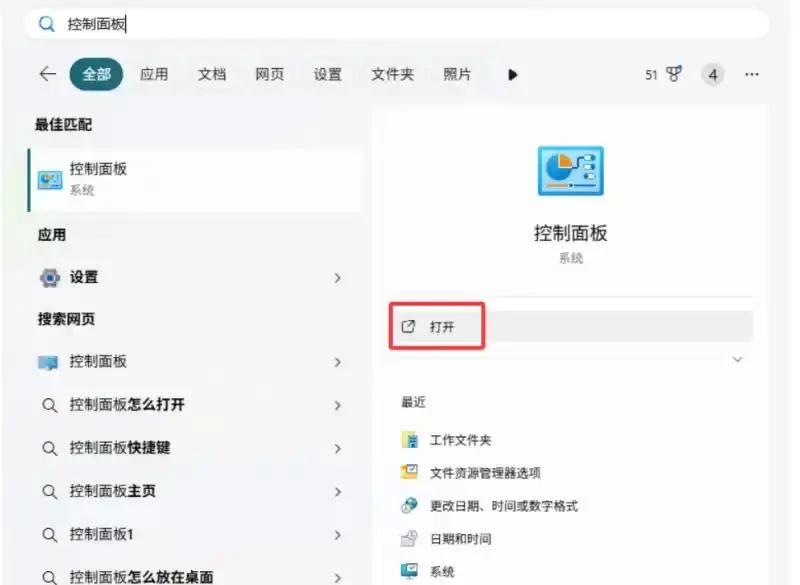
Right-click the [Start] menu in the bottom left corner, type "Control Panel" in the search box, and click to open when Control Panel appears.
Find and enter "Windows Defender Firewall" option (If you don't see the firewall option, switch View by → Small icons in the top right corner)
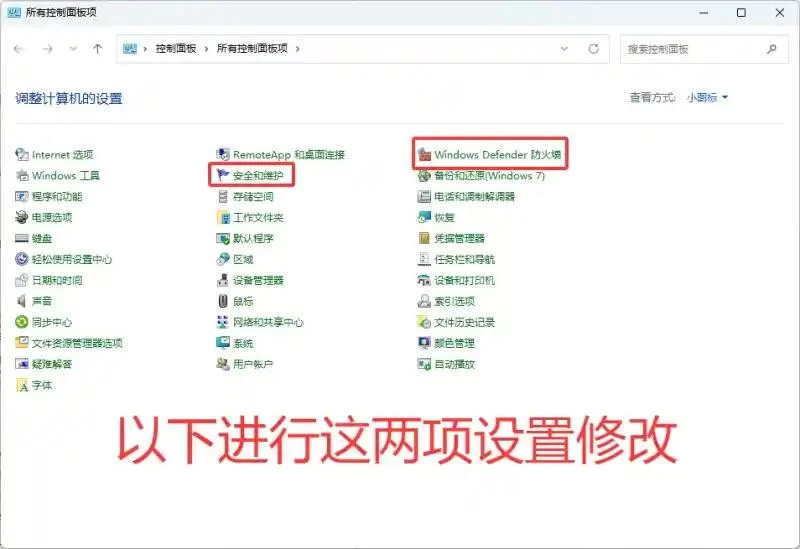
After opening it, you can see that the current system firewall is enabled (I'm doing this as a demonstration - I've already turned it off in advance)
Then click "Turn Windows Defender Firewall on or off" option on the left
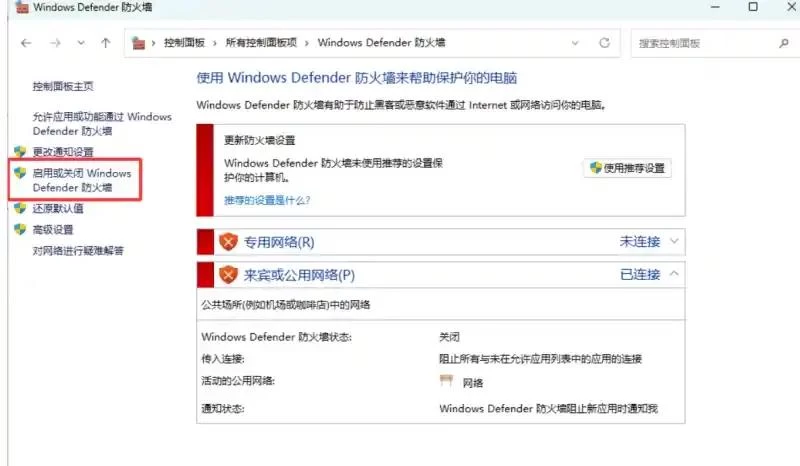
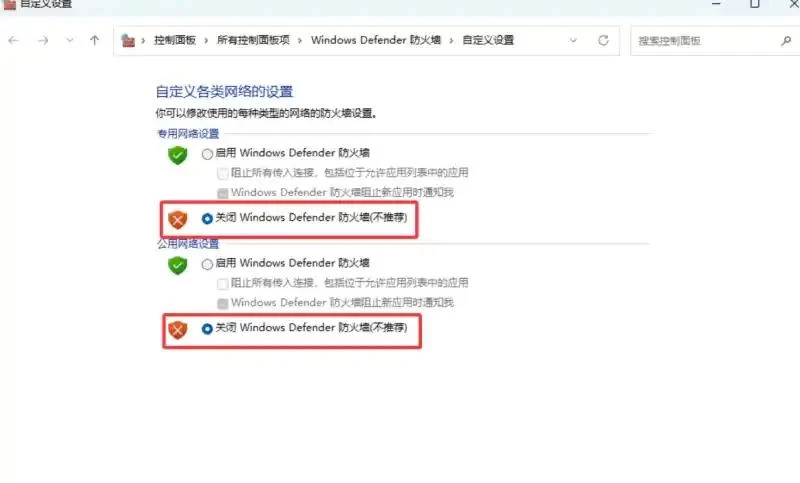
Change both to "Turn off Windows Defender Firewall," then click "OK"
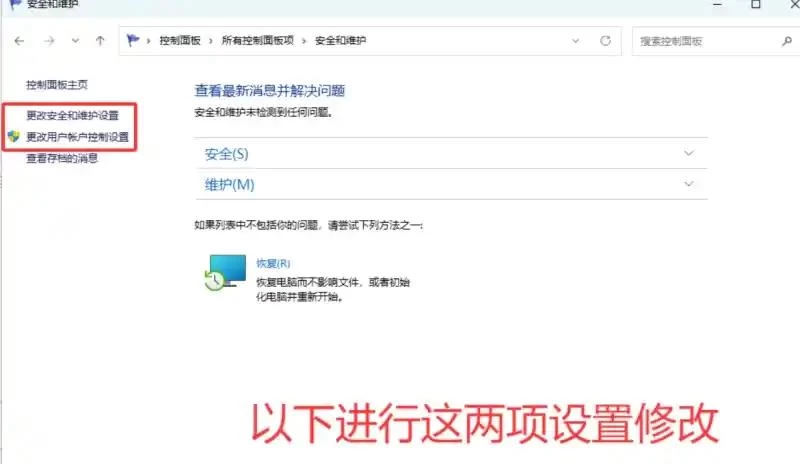
Then go back one step to the Control Panel main page and find "Security and Maintenance"
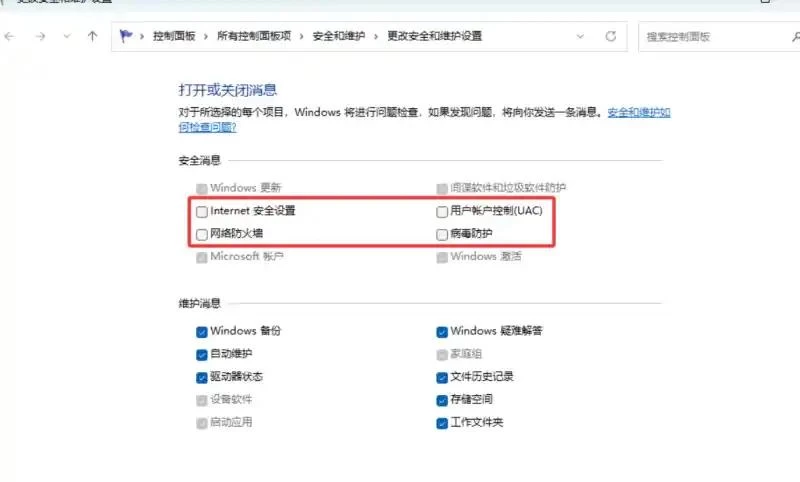
First click Change Security and Maintenance settings → uncheck Security settings, User Account Control, Network Firewall, and Virus protection, then click OK
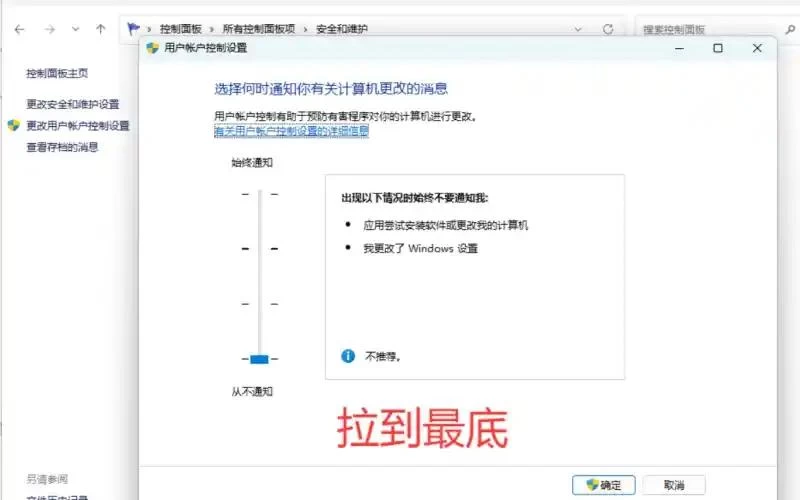
Then go back to the previous step and click Change User Account Control settings → drag to the bottom and click OK to save [All Control Panel settings are now complete]
Step 2 [Disable in Windows Security Center Settings]
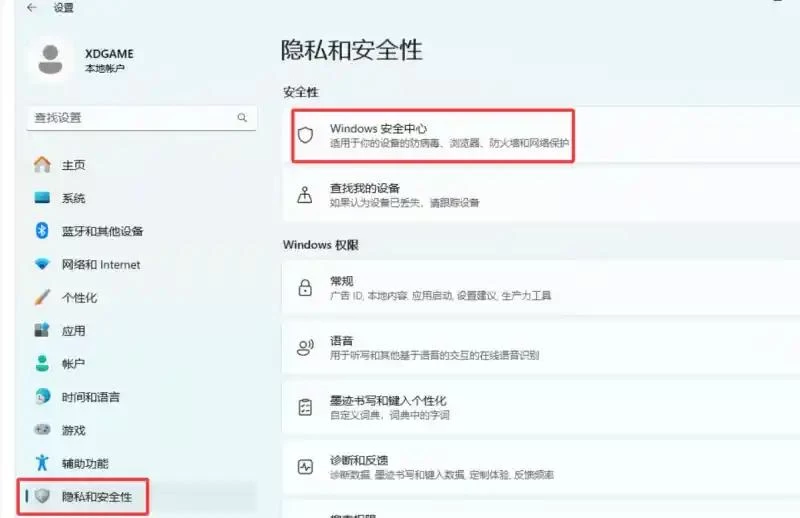
Open Windows Settings → click "Privacy & security" on the left → click Windows Security Center to enter
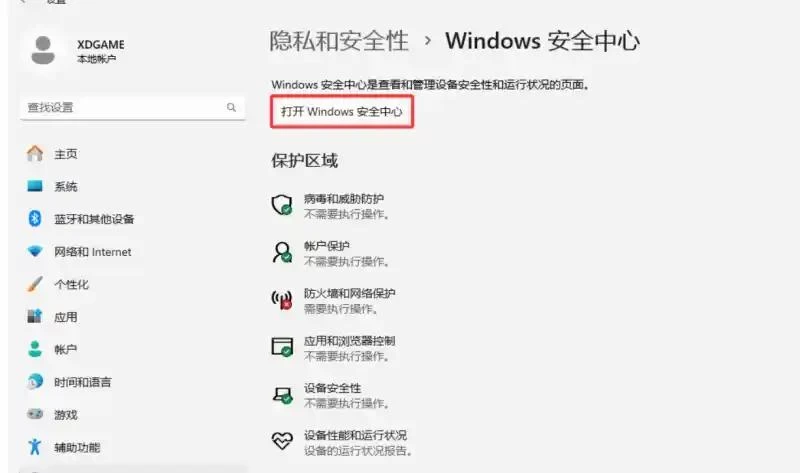
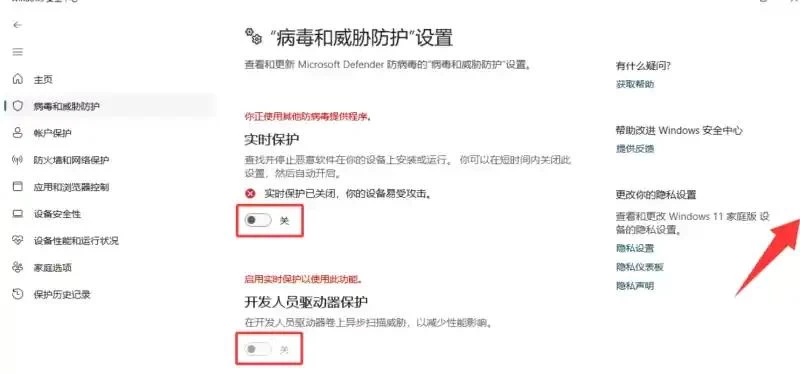
Click Virus & threat protection on the left → scroll down to find Virus & threat protection settings → Manage settings → turn everything OFF, scroll to the bottom and turn everything OFF
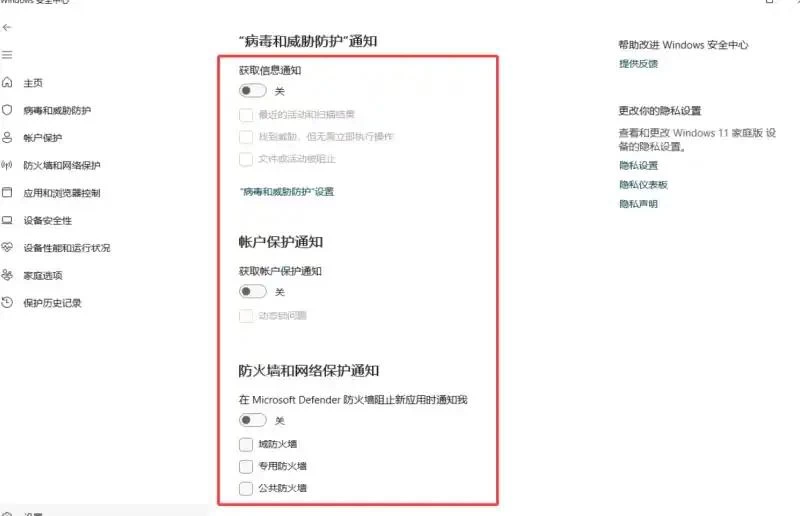
Then continue clicking on the left → Firewall & network protection → scroll down to find "Firewall notification settings" → Manage notifications → turn everything OFF
Then continue clicking on the left → App & browser control → Reputation-based protection settings → turn everything OFF, scroll to the bottom and turn everything OFF
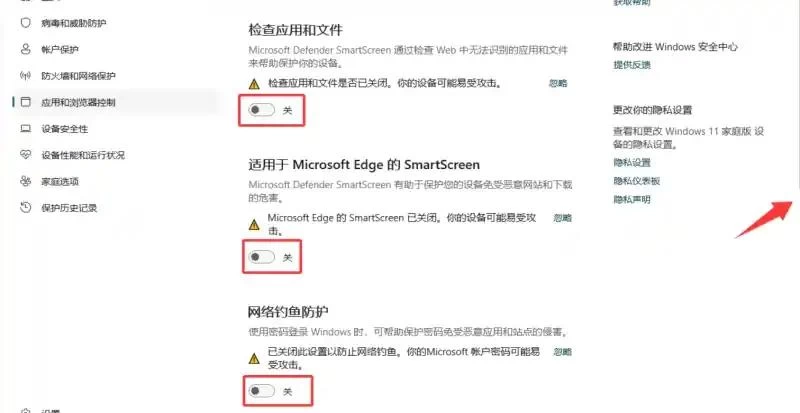
Then continue clicking on the left → Device security → Core isolation details → turn everything OFF, scroll to the bottom and turn everything OFF [All Windows Security Center settings are now complete]
Step 3: Group Policy Editor settings (Completely prevent it from turning back on)
Right-click the [Start] menu in the bottom left corner, select [Run] from the pop-up menu, type "gpedit.msc" to open the Local Group Policy Editor
Note: If you're on Win10/11 Home edition, you might not have "Local Group Policy Editor" and need to install it manually: https://wwsw.lanzouo.com/iLXQd2w4uhqh
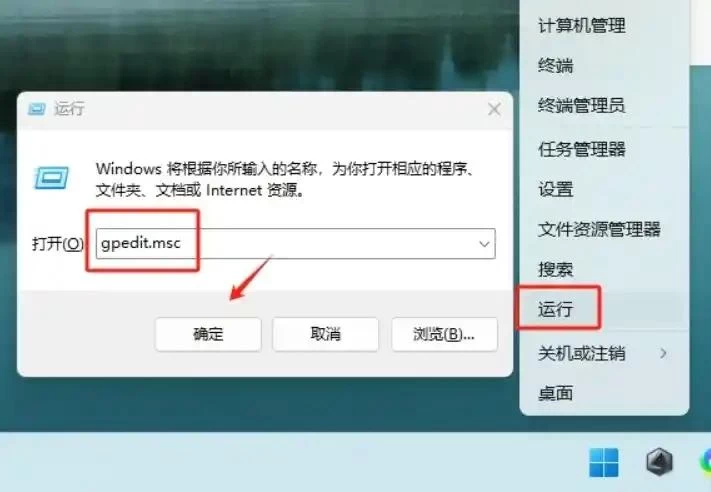
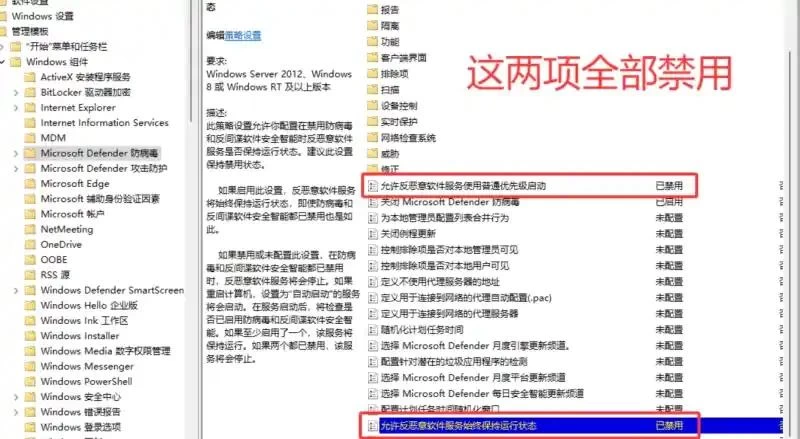
Click "Administrative Templates/Windows Components/Microsoft Defender Antivirus" and perform the following two operations
Double-click "Allow antimalware service to startup with normal priority" and select Disabled
Double-click "Allow antimalware service to remain running always" and select Disabled
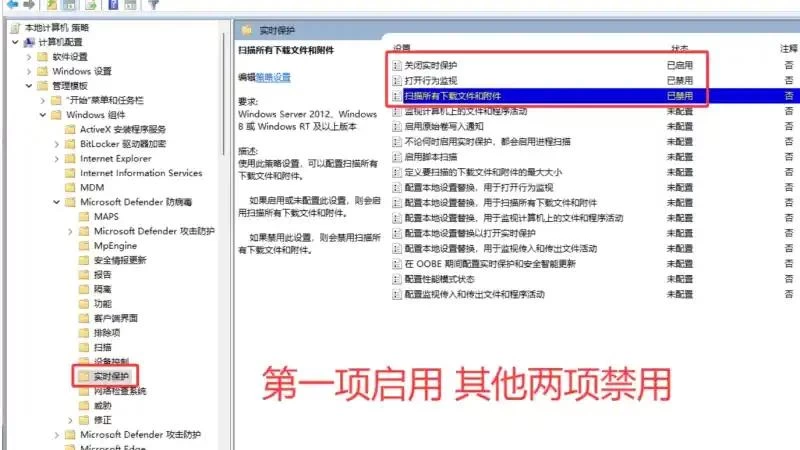
Then click "Administrative Templates/Windows Components/Microsoft Defender Antivirus/Real-time Protection" and perform the following three operations
Double-click "Turn off real-time protection" and select Enabled
Double-click "Turn on behavior monitoring" and select Disabled
Double-click "Scan all downloaded files and attachments" and select Disabled
Then click "Administrative Templates/Windows Components/Windows Security Center/Notifications" and perform the following one operation
Double-click "Hide all notifications" and select Enabled
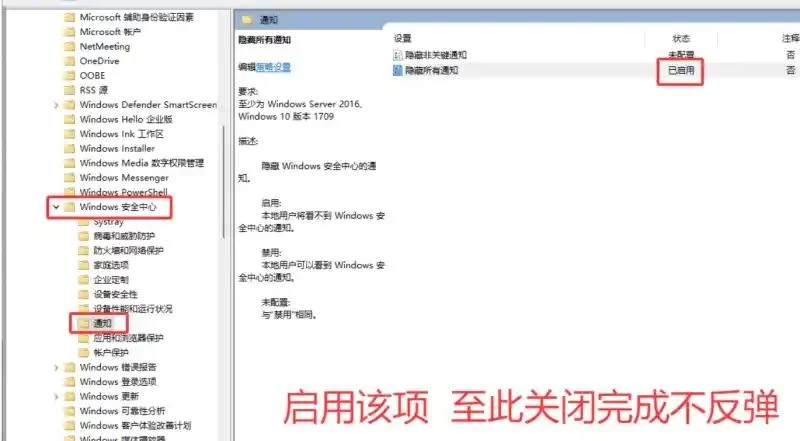
That's it! Windows Firewall won't turn back on anymore!
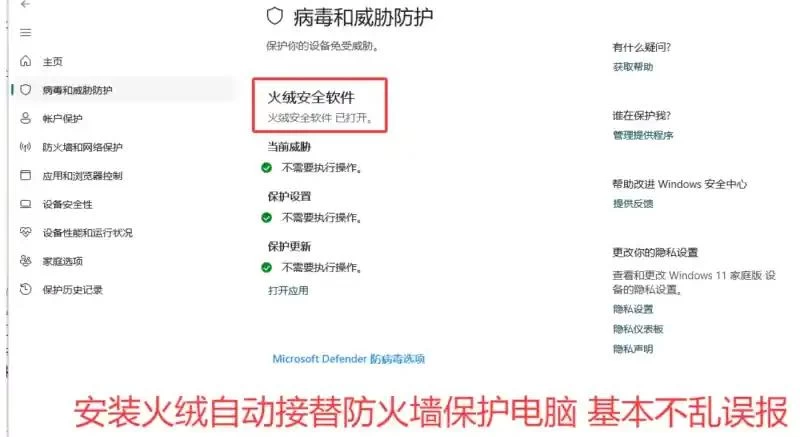
Additionally, if you've turned off Windows Firewall and feel like your computer needs some protection, I recommend the free domestic antivirus Huorong: https://www.huorong.cn/person
Very quiet, non-intrusive, no false positives - I've been using it for four or five years. The best choice to replace Windows Firewall!!!
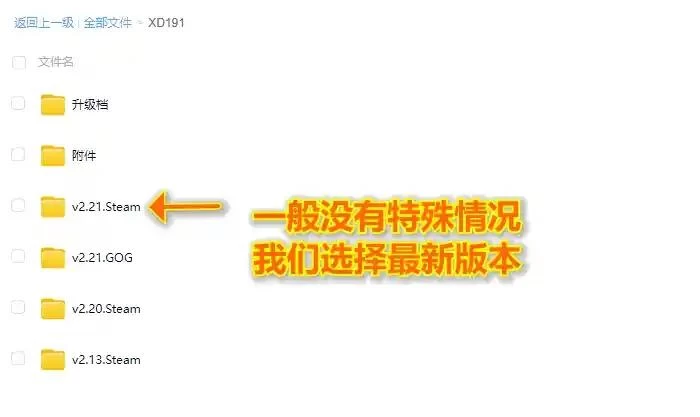
[Game Issue] There are many game versions in the cloud drive, which one should I choose?
Generally, this site keeps several historical versions of games. Unless there are special circumstances, just download the "Latest Version" - no need to download all of them.
But! If the new version has major bugs and you want to roll back to an old version, or if your system or computer configuration is only compatible with the old version, then you can consider downloading the old version.
Or! If you're a MOD player and your favorite MOD only supports the old version and hasn't been updated for the new version yet, then you can download the old version.
[Game Issue] Game won't run? Missing DLL or error?
① Game won't run
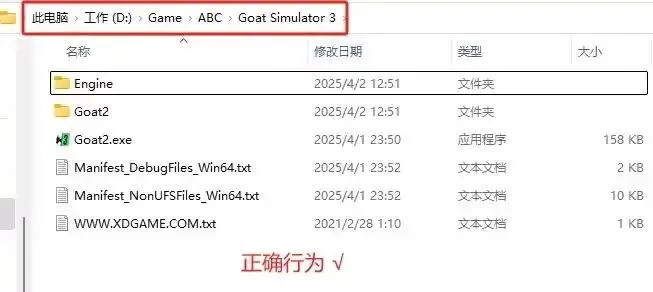
You must ensure the game directory is in all English (no Chinese characters or symbols, otherwise most games won't run)
Wrong ×
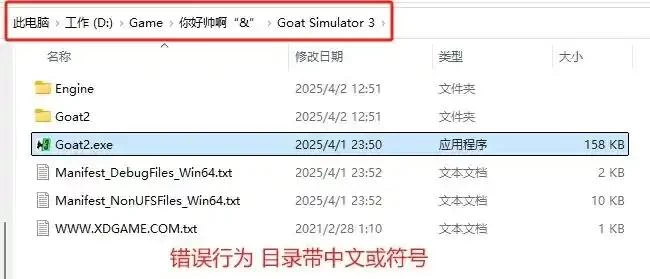
Correct √
② Missing DLL or error when opening game
First, make sure your computer has the necessary runtime environments installed, such as .NET, C++, DX repair tools, etc.
Because many new computers with fresh systems have no environments installed, which is also a major cause of games not opening.
③ Some games still won't open after doing all the above
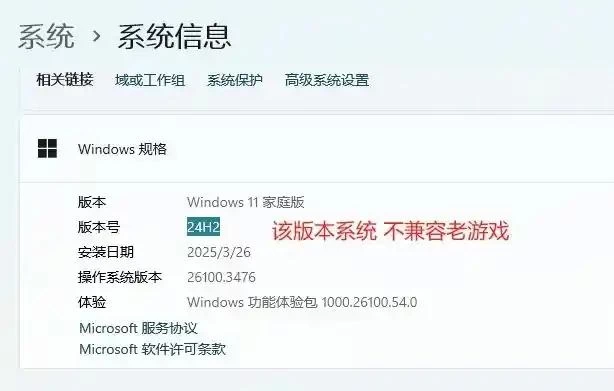
Currently, the latest Windows 11-24H2 version is incompatible with many older games. Some games already have Windows 11-24H2 compatibility patches available.
I've uploaded the patches to the game root directory if available. Apply them to run the game. If there's no Windows 11-24H2 compatibility patch available, you'll have to roll back to the 23H2 system to play.
[Game Issue] How to use game update patches?
For example, if I downloaded an update patch with the filename "1.6.0.0 – 1.7.0.0", it means you previously had v1.6.0.0 game resources on your computer, and the game has been updated. We want to upgrade to v1.7.0.0 version.
And we don't want to re-download the massive game file of hundreds of GB. We can use the update patch method to upgrade. Usually, update patches are only a few hundred MB or a few GB in size, which can greatly save our time.
Here's how to use it (Using E-group update patch as an example, the interface opens in Russian, not garbled text)
① Open the update patch → select your desired language → then Next
② For steps with nothing to select, just click Next
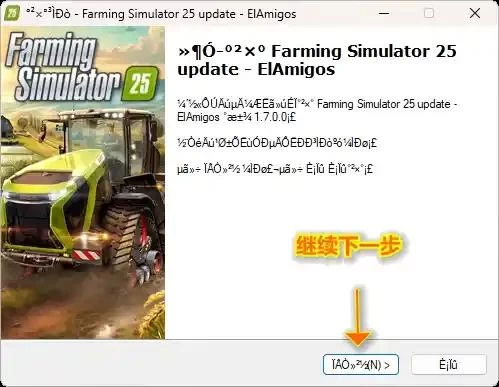
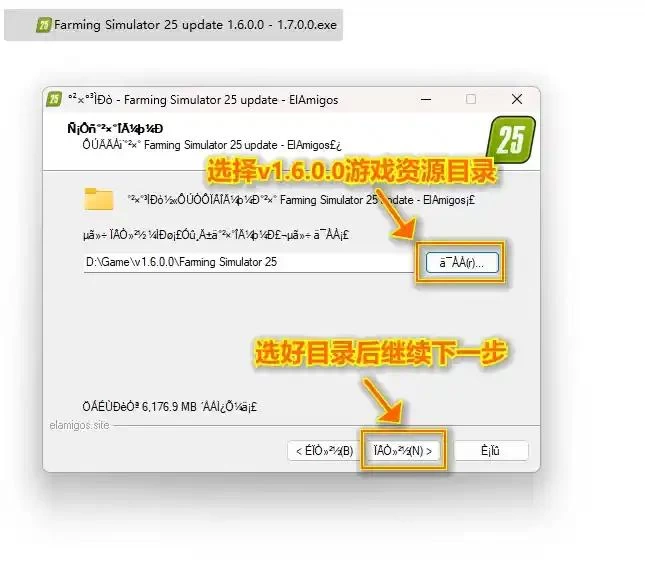
③ Select the game directory you want to upgrade, then continue to Next
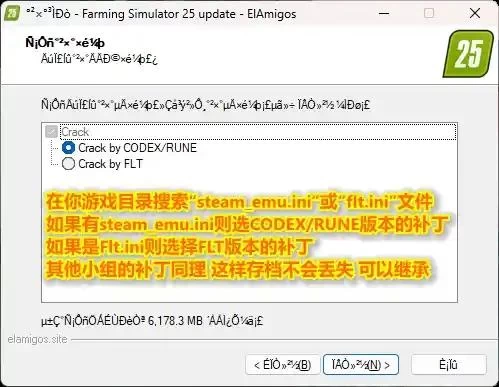
④ At the patch selection step, search for "steam_emu.ini" or "flt.ini" files in your game directory. If steam_emu.ini exists, select the CODEX/RUNE version patch, so your saves won't be lost.
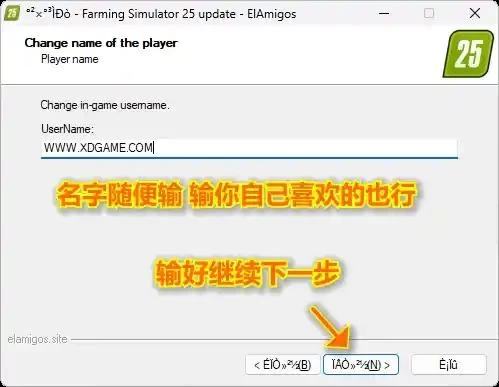
⑤ UserName can be anything you like, any Chinese or English name is fine.
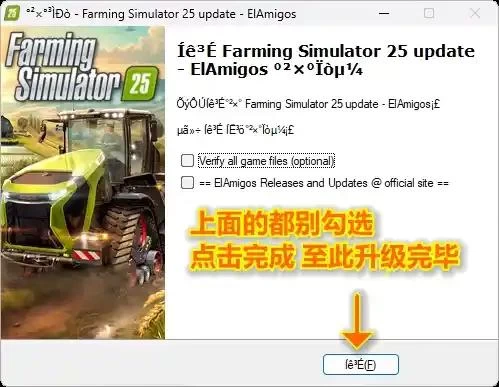
⑥ Click Next in the middle until the progress bar is full and installation is complete. The upgrade is finished. Now the v1.6.0.0 game has been successfully upgraded to v1.7.0.0.
[Game Issue] How to install GOG games? Steam vs GOG version, which to choose?
① How to install GOG games?
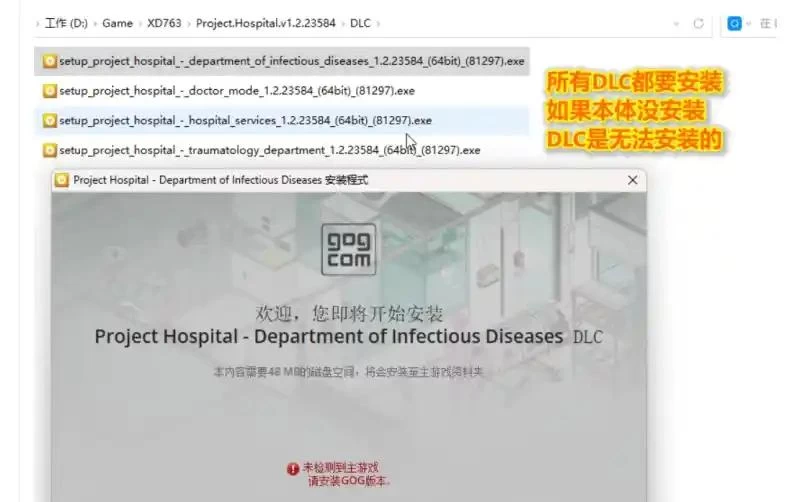
Usually after extracting a GOG game, you'll see the following files: game本体 + DLC (some come with Bonus, which contains wallpapers/original soundtracks/novel artbooks, etc.)
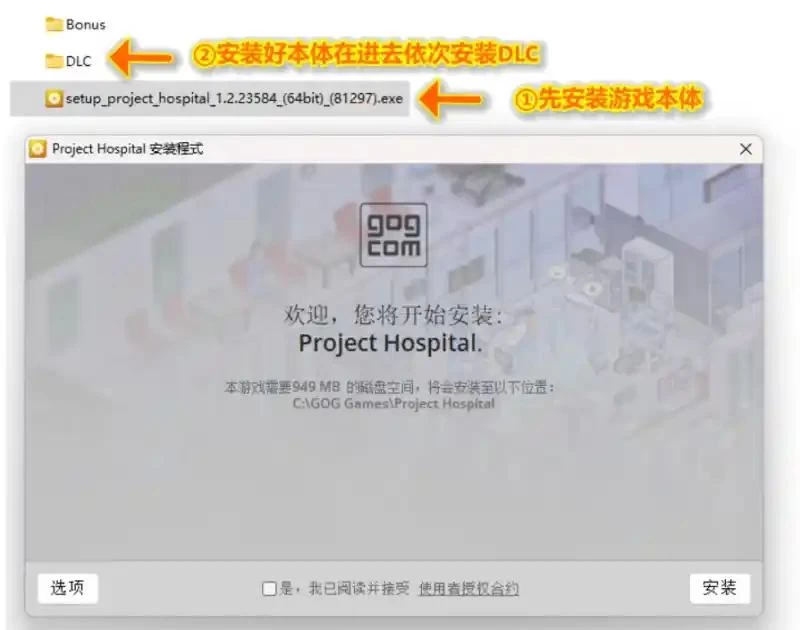
Install the game本体 first, then install the DLCs in order. DLC cannot be installed if the本体 is not installed first. After all installations are complete, you can play.
② If the resource has both Steam and GOG versions, how to choose?
Steam version features: Extract and play, no installation needed, but applying crack patches may trigger antivirus warnings.
GOG version features: Steam uses encryption for anti-piracy, GOG has no encryption. Players can freely copy games they own. Simply put, GOG resources are clean and hygienic, no crack patches needed to play.
If you like extract-and-play resources, choose Steam. If you prefer clean, unencrypted resources, choose GOG.
[System Issue] Where to download clean Win11 / Win10 system? How to reinstall system?
Windows 10 / Windows 11 Official Original System Download
Many users download various modified/lite systems or buy new computers with unknown bundled systems, causing games to run abnormally. We recommend switching to the official Microsoft version.
We recommend downloading from the official Microsoft website, not from random places on the internet, then buying a genuine activation code for a few bucks on e-commerce platforms.
Windows 10: https://www.microsoft.com/zh-cn/software-download/windows10
Windows 11: https://www.microsoft.com/zh-cn/software-download/windows11
USB installation tool WePE: https://www.wepe.com.cn/download.html
PE system installation tutorial: https://www.bilibili.com/video/BV1vT4y1n7JX/
System activation tool: https://wwsw.lanzouo.com/ik6sH2sfwiyf (For stable activation, buy a code on Taobao)

Publish Comments